
4:13 MINUTES · UPDATED FEBRUARY 2026
QuikAuthor 108: Managing AI Translation for Courses
Reach a global audience by translating your courses into 20 languages with AI.
About this Tutorial
Localise your training content globally in seconds. This tutorial shows how QuikAuthor's AI translation engine can convert your entire course into 20 languages while preserving formatting, interactive elements, and quiz logic. We demonstrate how to select target languages, review AI translations, and export localised SCORM packages for international learners.
Next tutorial: QuikAuthor 109: AI PDF to Interactive Course Conversion
Transcript
Okay, let's take a look at translation in the QuikAuthor application.
The first thing to do is find the course you want to translate and simply open the course itself.
Navigate to the translate button, choose the language that you want and click translate. That will start working.
You can also translate PDFs. So if I, for example, want to turn an English course French, I choose the number of lessons I want, upload the file and get it going.
In the AI video editor process, you'll see, once you've got past the stage of upload and into transcription, as you roll down, there is the option for you to translate into another language.
So, you can see the drop down here. We'll go with Spanish and we're going to translate that.
Okay. Perfect. So now we have our Spanish translation. I can edit this now or I can edit it later.
Let's just go on to continue to quiz selection. And it's going to start building for me in Spanish. I'm going to generate my quizzes now.
And while we're waiting for that, let's go back to the AI document converter. So now you'll see the PDF overview is all in French, which I'm happy with!
Again, I can make changes if I want to. I can go ahead and just generate the course.
Perfect. Great timing! So here we can see now we have the lesson transcript and the quiz is all created in Spanish.
If I want to download the subtitles, I can download the subtitles which I'll show you how to use in a moment. And if I'm happy with all of this, then I can just go ahead and create my course.
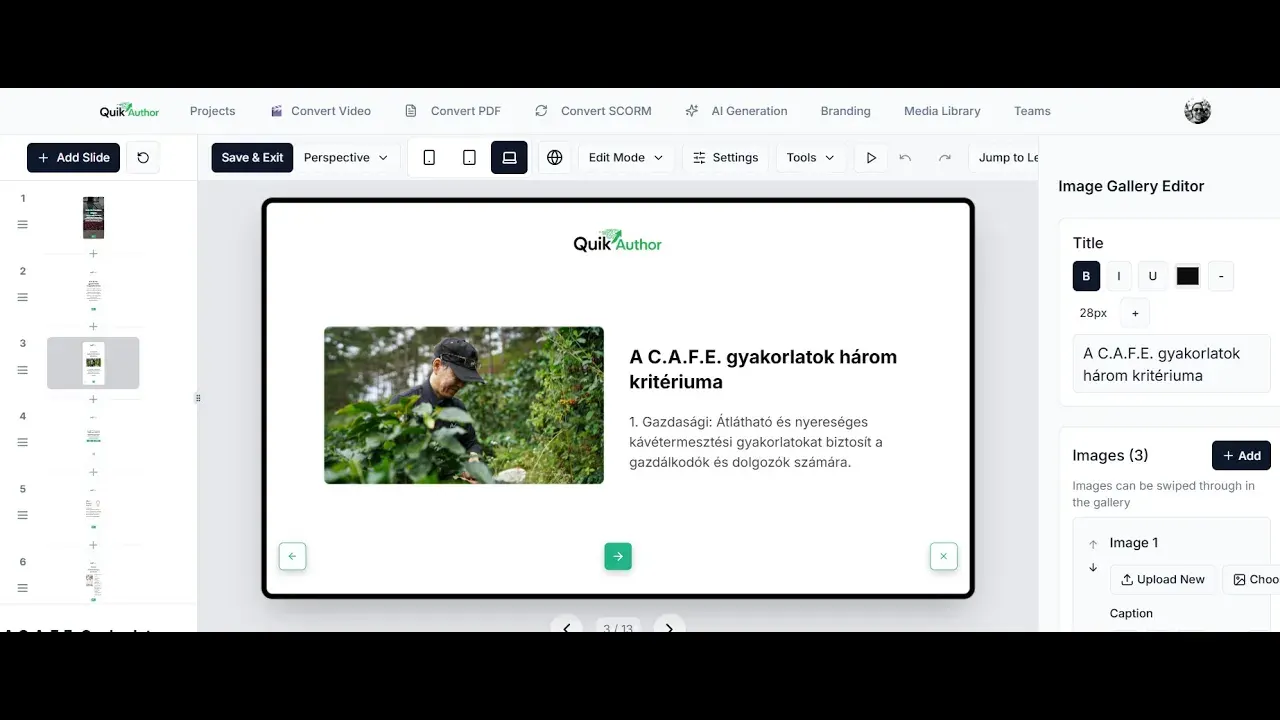
So, now what we've got is the AI Video Editor creating the course for me in Spanish and subtitles that I can add later. We've got the AI document converter creating a course for me in French. And if we go back, we can now see our Hungarian course that we translated earlier.
Okay. So, these are all the tools that you've got available for you. For completeness, we'll just take a look at how the build's going.
Very nice. So, here we've got the PDF created course that was in English translated to French, which looks perfect. Not that I'm terribly good at French!
And we're just waiting now for the AI video editor course to build. Here it is! So, we have all the course details, and we have the course itself translated.
And as I mentioned before, if you did want to add the subtitles, super simple, just take the subtitles or VTT that you downloaded a moment ago, drop it in, and you'll see now if I click play, the subtitles appear.
So that's it. Translation in QuikAuthor: you can translate courses you've built, you can translate PDFs, and you can translate and transcribe from video with subtitles.