
1:32 MINUTES · UPDATED FEBRUARY 2026
QuikAuthor 102: Managing the Media Library & Stock Assets
Learn how to organise your media and leverage our extensive library of stock assets.
About this Tutorial
QuikAuthor includes a robust Media Library that connects you to millions of high-quality stock images and videos. This tutorial shows you how to upload your own assets, use Unsplash integration, and organise media into folders for team file sharing. Efficient media management and image cropping are key to building visually engaging microlearning at scale.
Next tutorial: QuikAuthor 103: Building Courses from Scratch & Using Templates
Transcript
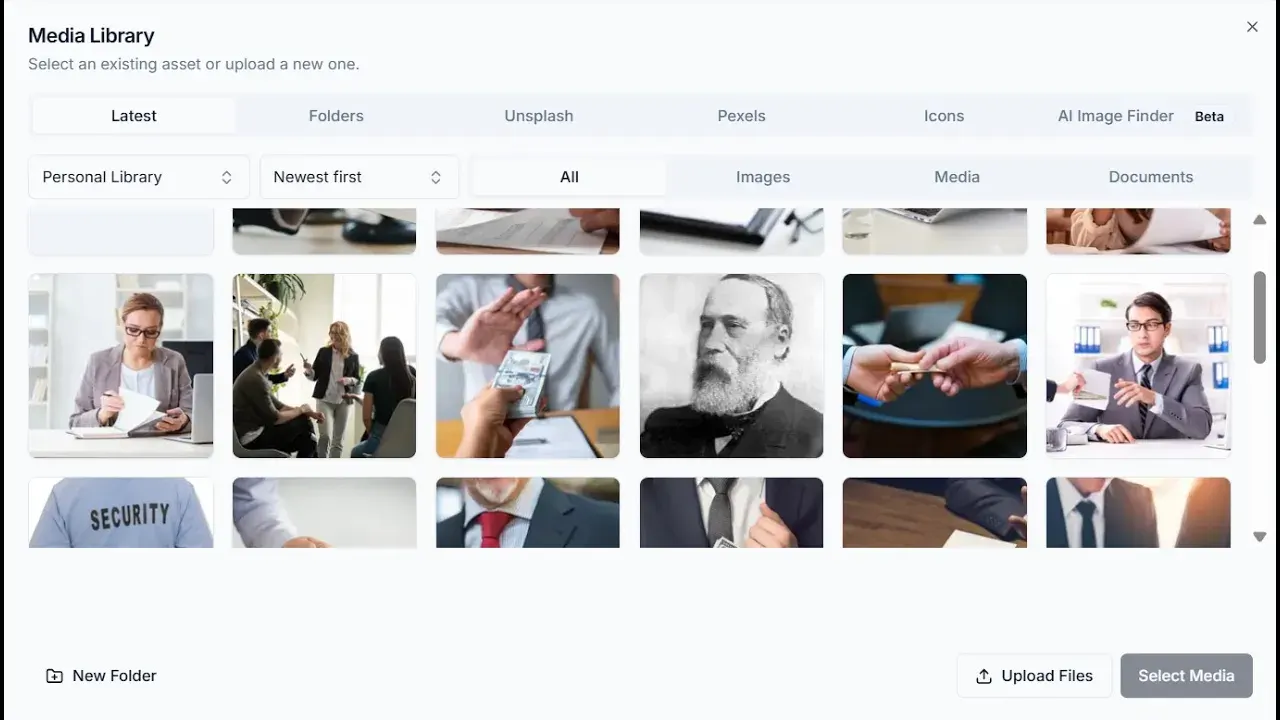
All right. So, this is the media library.
You can see it's broken down into your latest images and your folders.
Folders are where you can store all of your imagery into different areas if you wish.
There are different media types that you can work through as well, all of which are available to access within the course.
I'm going to show you that in a second.
You can also search across your assets, and if you're working in teams, you can access other people's files.
If you want to create a new folder, it's as simple as adding the folder and dragging your images into it.
It is super simple, and you can upload more images at any time.
When you're actually in the courses, such as this "Sales Essentials" course, you'll see how easy it is to manage images.
If we drop into this first image, you have the ability to work through your media and access your folders.
You will also see that Unsplash is integrated here.
If we do a search for "sales," for example, we'll see several relevant images come up.
Just choose the image that you want, let's go with this one, and it's ready to go.
For landscape images, you also have the ability to crop your image so that you get the perfect shape.
You will see that appear right here in the editor.