
5:52 MINUTES · UPDATED FEBRUARY 2026
QuikAuthor 105: Turning Video into Interactive AI Courses
See how our AI can transform any video into a fully interactive learning experience.
About this Tutorial
QuikAuthor's Video-to-Course AI transforms passive video content into active learning. This tutorial demonstrates uploading a video, automatic transcript generation with tracking, adding breakpoints, and selecting from multiple quiz types like Millionaire, confidence slider, true/false, bullseye, and strikeout. We also cover VTT subtitle downloads and full course generation with translation capabilities.
Next tutorial: QuikAuthor 106: Using the AI Course Generator to Create Courses
Transcript
Now, we're going to explore the "Convert Video" or AI capability.
The first thing we're going to do is add a new project and upload the video.
That's now loaded, and we're just waiting for the transcript to come through.
You're going to see that the transcript follows the progress of the video.
This is where we're able to put our break points, and we do have a couple of options there.
We can have the system suggest where to put break points, or we can continue without them if we want a single video-based course.
In this case, we are going to add breaks.
If I click play here, you'll see that as I'm talking, the progress is being tracked through the transcription.
If I want to add a breakpoint, I just click on the area where I want the break to occur.
If I'm not happy with that, I can remove it.
If I roll down a bit further, you'll see there is also a translation capability.
If you want to build the course in another language with subtitles, you can do that as well.
We're just going to click "continue to quiz selection."
Here we are in quiz selection.
Because it's English, we only have one language, and here we have the options to build our course.
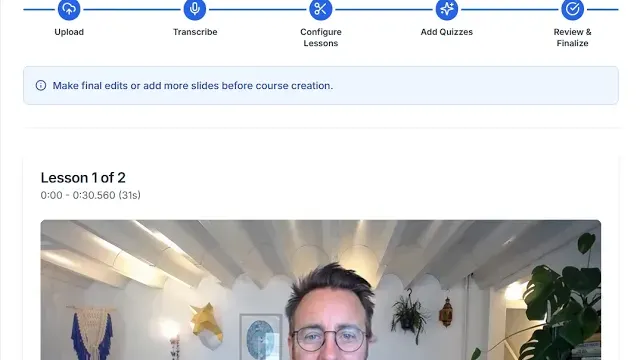
You can see it's segmented into two parts, which will each be a lesson.
This is the first half of the video, and this is the second half.
If you had more segments, there would be more lessons.
The system has added an introduction, the video centrepiece, and a "millionaire quiz."
If we want to allow people to skip the video based on their confidence level, we can add the confidence slider.
If you want to change the quiz type, you can choose a different one from the list.
We'll add a couple in there, and we will also use a simple "true or false" quiz.
Happy with that, we're going to generate our quizzes.
Here is our first lesson and the first video segment.
We have the transcripts again, and we can make edits here if we are using them for subtitles.
You have the opportunity to download the VTT, which is a subtitle tool you can add to the video.
You've also got the confidence slider where you can define the requirements for skipping a section.
Everything in here is editable, including the multiple-choice or strikeout quizzes.
I'm happy with what I've got, so I'm going to click to the next lesson.
In the next lesson, you also have a subtitle download and the ability to delete or add quizzes back in.
We're happy with all of this, so we're going to go ahead and create our course now.
Here's our course with the title, details, front cover, and tags already built.
We've got our branding settings where we can change the look and feel of our course.
We have our two lessons, both with unique covers, titles, and descriptions for searching.
If we jump into this first lesson, we see a front cover that has been generated.
As always, we can edit any aspect of this.
We have the confidence slider, so if I were 90% confident, I could jump past the video.
Here is the video element where we can upload our subtitles as well.
We will see the subtitles appear in the preview here.
We also have the quiz components, such as the strikeout game, and the lesson completion screen.
You'll see the same thing for lesson two with different quizzes and games incorporated.
Once you're happy, you can perform a QA scan to ensure everything is good for quality purposes.
Then, go ahead and export. It is as simple as that.